Adding Waline Comment Function to Hugo
1. Background Introduction
- First, I’m using the Hugo Hextra theme to build my blog
- Hextra has built-in Giscus project interface. Here’s the Hextra documentation, but Giscus only allows commenting via GitHub login, which feels limited in functionality. Comments – Hextra
- Hugo’s officially recommended project is Disqus, but that’s a commercial product that’s free for individuals but may have ads. Also, some of Hugo’s other projects don’t have styles I like, so my final choice was Waline, recommended by AI, which has Chinese documentation and is relatively friendly to Chinese users. Comments | Hugo Official Documentation | Waline | Waline
2. Waline Deployment
2.1 Waline Deployment
Refer to the official documentation, it’s simple and easy to get started. Read it carefully with heart and you’ll understand everything.
In short, it leverages LeanCloud’s free database and Vercel’s free hosting. This hosts the Waline application through Vercel, stores data in LeanCloud, and then you can call this system on your own website.
2.2 Bind Domain (Optional)
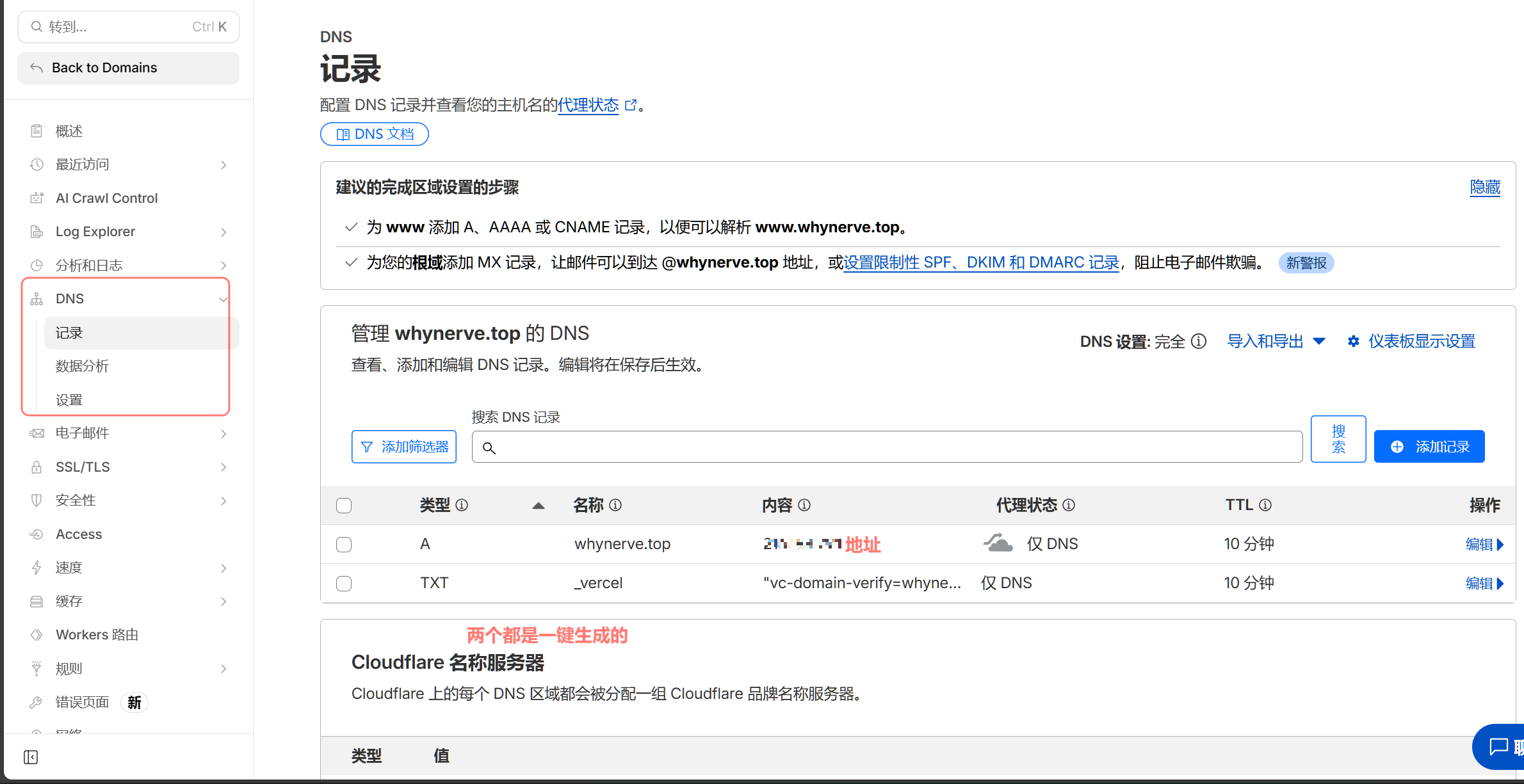
The domain binding method in the official documentation - I don’t know if it needs modification now or what, but you can’t just fill in CNAME. You need to follow Vercel’s regulations. When binding a domain, a one-click binding button will appear.
!!! First add the domain in Vercel, then click one-click binding which will automatically jump to your domain’s DNS hosting platform, then verify and you’re done.
If your domain is hosted on Cloudflare, the page for adding DNS is as follows:
3. Structure Analysis
For a beginner like me who isn’t clear about Hugo’s structure, you can use AI to directly analyze GitHub projects. For example, Google Gemini has a feature to import GitHub code repositories. Or use vibe coding, claude code router-driven using GLM’s claude code, etc., to analyze the Hugo project structure. Different themes may be different.
Here’s the structure of the Hextra theme. First, I found the files related to the comment functionality built in by the author:
- hextra/layouts/partials/components/comments.html
- hextra/layouts/partials/components/giscus.html
- hextra/layouts/single.html
3.1 File Functions
- In comments.html, the author mainly specified that the comments parameter defaults to false, and only the giscus type interface is accepted.
- The giscus.html file is the configuration for giscus. You can check previous documentation and use AI to interpret it.
- The single.html file places comments at the end of certain specified pages.
3.2 Modify Files
Based on the original file structure above, naturally you need to modify these files to add the Waline interface. Before doing so, you need to complete Waline hosting registration.
a. Add Waline Type
Add Waline type in comments.html: Modified file
{{- $enableComments := site.Params.comments.enable | default false -}}

{{ if not (eq .Params.comments nil) }}
  {{ $enableComments = .Params.comments }}
{{ end }}

{{- if $enableComments -}}
  {{- if eq site.Params.comments.type "giscus" -}}
    {{ partial "components/giscus.html" . }}
  {{- else if eq site.Params.comments.type "waline" -}} {{/* New addition */}}
    {{ partial "components/waline.html" . }}
  {{- end -}}
{{- end -}}
New statement
  {{- else if eq site.Params.comments.type "waline" -}} {{/* New addition */}}
    {{ partial "components/waline.html" . }}
b. Modify YAML File
In the configuration file, here in hugo.yaml, add the corresponding parameters:
  comments:
    enable: true
    type: waline  # Change type to waline

    # Add Waline configuration
    waline:
      serverURL: "https://walineserver.com" # Replace with your own Waline server address
c. Add waline.html File
I added this code to comments.html
  {{- else if eq site.Params.comments.type "waline" -}} {{/* New addition */}}
    {{ partial "components/waline.html" . }}
So, in the hextra/layouts/partials/components/ directory, I need to create a new waline.html file to get Waline’s default code:
<link rel="stylesheet" href="https://unpkg.com/@waline/client@v3/dist/waline.css"/>
<div id="waline" class="hx-mt-8"></div>

{{- $showReaction := (default true .Params.reaction) -}}
{{- with site.Params.comments.waline -}}
{{- /* Map uppercase/lowercase and build config object */ -}}
{{- $config := dict "el" "#waline" "dark" `html[data-scheme="dark"]` -}}
{{- $replaceKeys := dict "serverurl" "serverURL" "pagesize" "pageSize" "requiredmeta" "requiredMeta" -}}

{{- range $key, $val := . -}}
    {{- if ne $val nil -}}
        {{- $k := index $replaceKeys $key | default $key -}}
        {{- if eq $k "reaction" -}}
            {{- $config = merge $config (dict $k (cond $showReaction $val false)) -}}
        {{- else -}}
            {{- $config = merge $config (dict $k $val)) -}}
        {{- end -}}
    {{- end -}}
{{- end -}}

<script type="module">
    import { init } from 'https://unpkg.com/@waline/client@v3/dist/waline.js';
    init({{ $config | jsonify | safeJS }});
</script>
{{- end -}}
d. Add Waline CSS File
Since Waline’s non-default styles aren’t that fancy, you can optimize some formats by adding CSS code yourself. For example, the appearance follows light and dark theme changes, or some simple animations, etc.
For file sharing, you can embed the above in waline.html, or add this code in hextra/assets/css/custom.css to beautify the format. This CSS mainly follows theme changes and simple animations.
custom.css (waline theme part) – gists code
4. Run Hugo, View Results
Log in and use. The first user to log in becomes the administrator. Through the administrator, you can designate other users as administrators, as well as delete and manage comments.
Check if the theme matches your expectations. If not, use F12 in your browser to open developer tools, then use the element inspection tool to modify code one by one. It’s not difficult, just takes some time.